FocusTube React Native pt. 2
In this project you will continue to learn the fundamentals of React Native and start learning about APIs in order to make a mobile YouTube clone that removes the distracting algorithms that hook you in.
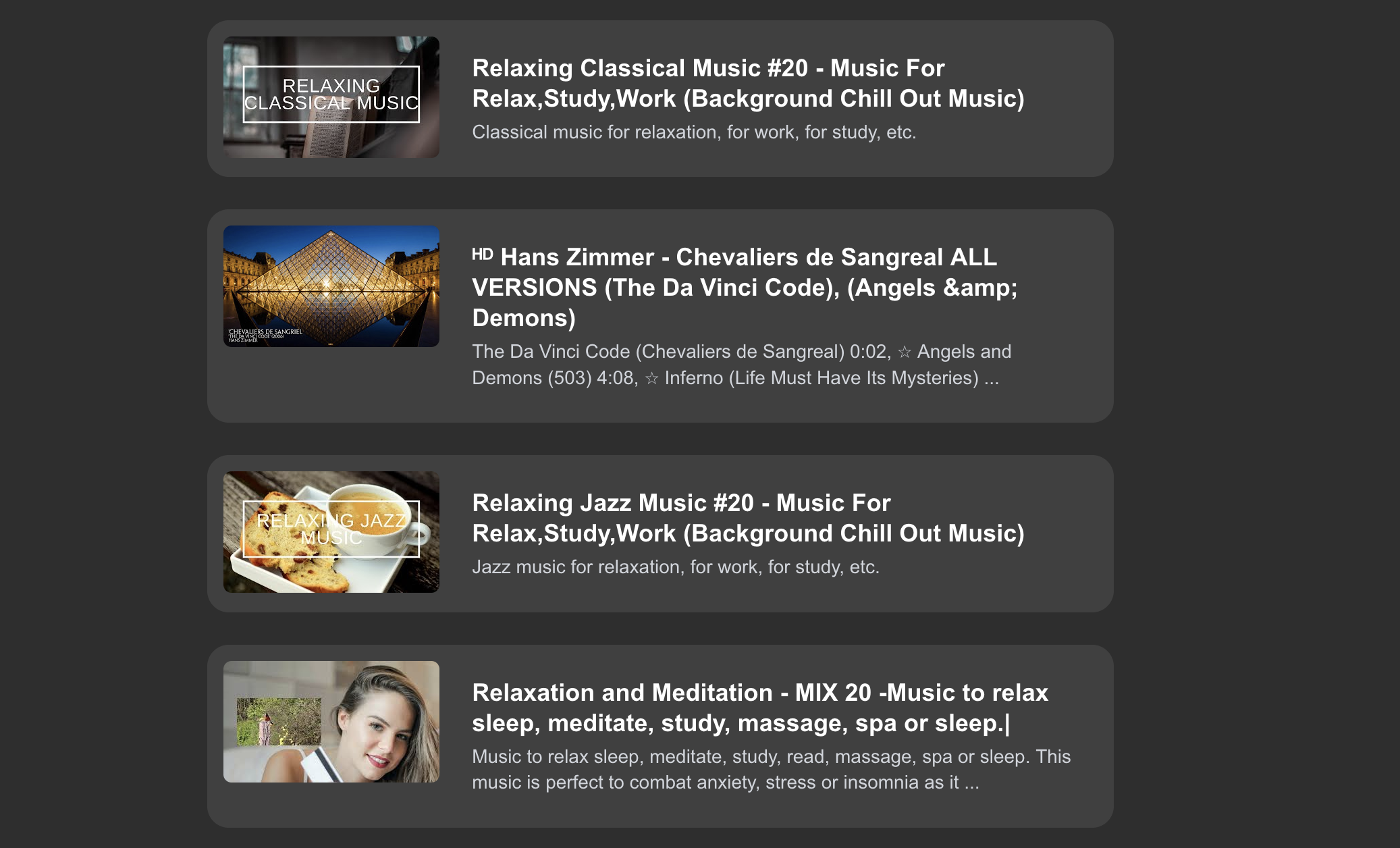
What You Will Learn in This Section
- How API endpoints, requests, and responses work in a client-only mobile application.
- How to structure an API helper layer in React Native for cleaner, more secure code.
- How to connect, fetch, parse, and display live YouTube data in your mobile UI using React hooks.
Introduction to APIs
What is an API?
An API is an Application Programming Interface. Think of it as a bridge that allows two different pieces of software to talk to each other.
Today, we will be working with REST APIs, which are the standard way applications communicate over the internet. They use HTTP methods—the same methods your browser uses to fetch web pages. The two most common methods are:
- GET: When you want to retrieve data from a source (like reading a webpage).
- POST: When you want to send new data to a source (like submitting a login form).
A Real-World Example
Imagine you want to build a Pokémon Information App on your phone.
The hard way to build this app would be manually researching and typing out the stats for all 1,000+ Pokémon into your own app. This is where an API saves the day. There is a free service called PokeAPI that already has all this data. You just have to ask for it!
Here is how the interaction works:
- The Request: Your mobile app sends an HTTP request to the API asking for specific data (e.g., “Give me the stats for Pikachu”).
- The Processing: The API server receives your request, finds Pikachu’s data in its database, and formats it.
- The Response: The server sends the data back to you in a format your code can read, usually JSON (JavaScript Object Notation).
In code, making that request looks like this:
1
2
const response = await fetch('https://pokeapi.co/api/v2/pokemon/pikachu');
const apiData = await response.json();
And the apiData you get back will look something like this:
1
2
3
4
5
6
7
8
{
 "name": "pikachu",
 "height": 4,
 "weight": 60,
 "types": [
   { "type": { "name": "electric" } }
 ]
}
QUESTION: Looking at the JSON data above, how is a JSON object similar to a standard JavaScript object? If you wanted to get the Pokemon’s weight from
apiData, what code would you write?
If you want a deeper visual explanation, check out this 3-minute video on APIs.
Transitioning to the YouTube API
Just like PokeAPI provides us with Pokémon data, Google provides a YouTube API that lets developers access real YouTube videos, playlists, and channel data programmatically.
Instead of showing Pikachu’s stats, we will be requesting real video search results to power FocusTube!
Enabling the YouTube API
Unlike PokeAPI, Google needs to know who is requesting their data to prevent abuse. To do this, we need to generate a unique “password” called an API Key.
Go to the Google Cloud Console to get started:
- If you have not made a project before, follow this quick tutorial to get one set up.
- Next, open the Navigation hamburger menu at the top left.
- Select APIs & Services > Library.
- In the search box, search for “youtube data api v3”. Click on the result, then click Enable.
- You will be taken to the dashboard. In the middle-left of the screen, select the Credentials tab.
- On the right side of the screen, click + Create Credentials and select API Key.
- Select Public data, we aren’t accessing youtube’s private user data.
- Copy the generated API Key and save it somewhere safe for now. DO NOT POST THIS ANYWHERE ON THE INTERNET.
Congratulations! You now have an API key for the YouTube API.
Securing Your API Key in React Native
Because your API key acts as a password to your Google account’s API quota, you must hide it from the public.
In Web frameworks like NextJS, we can safely hide our API keys in a backend server that the client cannot see. However, React Native compiles into a mobile app that runs entirely on the user’s phone.
WARNING: In production-ready mobile apps, client-side API keys can be extracted by hackers reverse-engineering your app’s code. To secure it fully, you would build a separate backend server to act as a proxy. For this educational project, we will use Expo’s built-in client-side environment variable system.
Let’s set up environment variables in Expo:
- In the root directory of your project (the same folder that holds
package.json), create a new file named.env. - Open the
.envfile and paste your API Key like this:
1
EXPO_PUBLIC_API_KEY=yourapikeyhere
IMPORTANT: In Expo, all environment variables must start with the prefix
EXPO_PUBLIC_for the app to access them!
QUESTION: Why must all Expo environment variables start with the prefix
EXPO_PUBLIC_? What would happen if we used private API keys without this prefix on a client-side device?
- Ensure you have a
.gitignorefile and that.envis listed inside it. This guarantees that your API key will never be uploaded to GitHub.
Creating your API Service Layer
Since React Native does not run on a server, we do not build /api/... server routes like you would in NextJS. Instead, we make HTTP requests directly from our app.
However, writing direct fetch() calls inside our visual UI components is bad practice. It makes the code cluttered and hard to maintain. To keep our code clean, we will create a dedicated API Service Layer to abstract these details.
In your project root, create a new folder named services/. Inside it, create a file named youtube.ts.
We need three different functions in this service to handle our data:
fetchVideoDetails(videoId)searchVideos(query, type)fetchPlaylistVideos(playlistId)
This is what your tree structure should look like now:
1
2
3
4
5
6
7
8
9
10
11
12
13
14
15
16
my-app/
├── app/
│   ├── (tabs)/
│   │   ├── _layout.tsx
│   │   ├── explore.tsx
│   │   └── index.tsx
│   ├── playlist/
│   │   └── [playlistId].tsx
│   ├── search/
│   │   └── [searchId].tsx
│   ├── video/
│   │   └── [videoId].tsx
│   ├── _layout.tsx
│   └── modal.tsx
└── services/
    └── youtube.ts
Writing the Service Logic
We will use the JavaScript URL helper class to dynamically build our query strings with query parameters (e.g. ?part=snippet&key=...).
Here is the helper code for services/youtube.ts:
1
2
3
4
5
6
7
8
9
10
11
12
13
14
15
16
17
18
19
20
21
22
23
24
25
26
27
28
29
30
31
32
33
34
35
36
37
38
39
40
41
42
43
44
45
46
47
48
49
50
51
52
53
54
55
56
57
58
59
60
61
62
const BASE_URL = "https://www.googleapis.com/youtube/v3";
const API_KEY = process.env.EXPO_PUBLIC_API_KEY;

export async function fetchVideoDetails(videoId: string) {
  const url = new URL(`${BASE_URL}/videos`);
  url.searchParams.set("part", "snippet,contentDetails,statistics");
  url.searchParams.set("id", videoId);
  url.searchParams.set("key", API_KEY || "");

  try {
    const response = await fetch(url.toString());
    if (!response.ok) {
      throw new Error("Failed to fetch video details");
    }
    return await response.json();
  } catch (error) {
    console.error("fetchVideoDetails Error:", error);
    throw error;
  }
}

export async function searchVideos(query: string, type: string) {
  const url = new URL(`${BASE_URL}/search`);
  url.searchParams.set("part", "snippet");
  url.searchParams.set("q", query);
  url.searchParams.set("type", type);
  url.searchParams.set("key", API_KEY || "");

  if (type === "video") {
    url.searchParams.set("videoDuration", "medium");
  }

  try {
    const response = await fetch(url.toString());
    if (!response.ok) {
      throw new Error("Failed to search videos");
    }
    return await response.json();
  } catch (error) {
    console.error("searchVideos Error:", error);
    throw error;
  }
}

export async function fetchPlaylistVideos(playlistId: string) {
  const url = new URL(`${BASE_URL}/playlistItems`);
  url.searchParams.set("part", "snippet");
  url.searchParams.set("playlistId", playlistId);
  url.searchParams.set("maxResults", "25");
  url.searchParams.set("key", API_KEY || "");

  try {
    const response = await fetch(url.toString());
    if (!response.ok) {
      throw new Error("Failed to fetch playlist");
    }
    return await response.json();
  } catch (error) {
    console.error("fetchPlaylistVideos Error:", error);
    throw error;
  }
}
QUESTION: Why do we wrap our API requests in
try/catchblocks? What kinds of real-world errors (like network loss or API rate limits) could cause thecatchblock to execute?
Calling the API and Displaying the Data
Now that we have our service layer, we can load this data directly into our React Native screens!
Let’s work on our /search screen first.
Fetching Data inside useEffect
Because fetching data from the internet takes time, we run it asynchronously. In React, we use the useEffect hook to trigger our API call when the screen loads, and use useState to save the results so the screen re-renders once the data arrives.
Here is the implementation of app/search/[searchId].tsx:
1
2
3
4
5
6
7
8
9
10
11
12
13
14
15
16
17
18
19
20
21
22
23
24
25
26
27
28
29
30
31
32
33
34
35
36
37
38
39
40
41
42
43
44
45
46
47
48
49
50
51
52
53
54
55
56
57
58
59
60
61
import React, { useEffect, useState } from 'react';
import { View, Text, Image, ScrollView, ActivityIndicator, Pressable } from 'react-native';
import { Link, useLocalSearchParams } from 'expo-router';
import { searchVideos } from '../../services/youtube';

export default function SearchPage() {
 const { searchId } = useLocalSearchParams();
 const [results, setResults] = useState<any>(null);
 const [loading, setLoading] = useState(true);

 useEffect(() => {
   const getResults = async () => {
     try {
       // encodeURIComponent ensures weird characters don't break our URL
       const data = searchVideos(searchId as string, "video");
       setResults(data);
     } catch (error) {
       console.error(error);
     } finally {
       setLoading(false);
     }
   };

   getResults();
 }, [searchId]);

 if (loading) {
   return (
     <View className="flex-1 bg-black justify-center items-center">
       <ActivityIndicator size="large" color="#ef4444" />
     </View>
   );
 }

 return (
   <ScrollView className="flex-1 bg-black p-4">
     <Text className="text-white text-3xl font-bold mb-6">Search Results</Text>

     <View className="pb-10">
       {results?.items?.map((vid: any) => (
         <Link href={`/video/${vid.id.videoId}`} asChild key={vid.id.videoId}>
           <Pressable className="w-full bg-neutral-800 rounded-xl p-3 flex-row mb-4">
             <Image
               source=
               className="w-40 h-24 rounded-lg"
             />
             <View className="flex-1 ml-3 justify-start">
               <Text className="text-white text-base font-bold" numberOfLines={2}>
                 {vid.snippet.title}
               </Text>
               <Text className="text-gray-400 text-xs mt-1" numberOfLines={2}>
                 {vid.snippet.description}
               </Text>
             </View>
           </Pressable>
         </Link>
       ))}
     </View>
   </ScrollView>
 );
}
BUG HUNT: The code above compiles perfectly without crashing, but when you run it, the screen stays blank forever (the loading spinner disappears, but no search results show up). Look closely at the
useEffecthook. Can you find what’s missing when we call the asynchronous API function?
QUESTION: In the code above, we use the
numberOfLinesproperty on the<Text>components. Why is this important when rendering dynamic data from an external API on mobile devices?
Video Screen Integration
Now that clicking a video card links to /video/[videoId], let’s update app/video/[videoId].tsx to load the actual YouTube Player and display the video details!
1
2
3
4
5
6
7
8
9
10
11
12
13
14
15
16
17
18
19
20
21
22
23
24
25
26
27
28
29
30
31
32
33
34
35
36
37
38
39
40
41
42
43
44
45
46
47
48
49
50
51
52
53
54
import React, { useEffect, useState } from 'react';
import { View, Text, ScrollView, ActivityIndicator } from 'react-native';
import { useLocalSearchParams } from 'expo-router';
import YoutubePlayer from 'react-native-youtube-iframe';
import { fetchVideoDetails } from '../../services/youtube';

export default function VideoScreen() {
  const { videoId } = useLocalSearchParams();
  const [video, setVideo] = useState<any>(null);
  const [loading, setLoading] = useState(true);

  useEffect(() => {
    const getDetails = async () => {
      try {
        const data = await fetchVideoDetails(videoId as string);
        setVideo(data.items?.[0] ?? null);
      } catch (error) {
        console.error(error);
      } finally {
        setLoading(false);
      }
    };

    getDetails();
  }, [videoId]);

  if (loading) {
    return (
      <View className="flex-1 bg-black justify-center items-center">
        <ActivityIndicator size="large" color="#ef4444" />
      </View>
    );
  }

  const title = video?.snippet?.title ?? "No Title";
  const description = video?.snippet?.description ?? "No Description";

  return (
    <ScrollView className="flex-1 bg-black">
      <View className="p-4">
        <YoutubePlayer
          height={220}
          play={false}
          videoId={videoId as string}
        />
        <Text className="text-white text-2xl font-bold mt-4">{title}</Text>

        <View className="bg-neutral-800 p-4 rounded-xl mt-4">
          <Text className="text-gray-300 text-sm leading-relaxed">{description}</Text>
        </View>
      </View>
    </ScrollView>
  );
}
QUESTION: Look at how we fall back to
"No Title"or"No Description"using the??operator. What is this operator called in JavaScript, and how does it prevent our app from crashing if the YouTube API returns null values?
Challenge Task: Build the Playlist Page
TASK: Complete the Playlist Screen Give an attempt at making the playlist page inside
app/playlist/[playlistId].tsx.
- Import the
fetchPlaylistVideosfunction from your API service.- Fetch the playlist items using the
playlistIdfrom the route parameters.- Display them in a list of video cards similar to your search screen.
- Make sure each video card successfully links to the video screen!
Final Challenge Task (Pagination & Filtering)
Lastly, YouTube’s search endpoint sometimes returns channels or YouTube Shorts, even when we specify we want standard videos.
To improve the user experience:
- Look at the items returned by the search API. Each item has a
kindunderid(e.g.vid.id.kind). - Filter your
.map()or use a.filter()function to ensure we only display actual videos (youtube#video) and skip channels or playlists!
Congrats!
You have finished the mobile migration of FocusTube!
There is a ton more you can do with this project. Here are some ideas:
- Utilize the button we did not program yet: Search Playlists.
- Make a dedicated Channel screen.
- Fetch and display comments below the video description.
- Connect OAuth authorization to display the student’s own subscribed feeds and playlists directly!
Thank you for sticking to the end. I hope you enjoyed the ride and learned something new about mobile development with React Native and Expo!